How to Set Up Automatic Email Blasts in Switchboard
Last updated: May 7, 2026
Switchboard allows you to send email blasts on a recurring schedule using Automated Email Blasts. Create an email blast as you normally would — choose your audience, compose your email, and set a schedule. Blasts can run as frequently as every 12 hours.
Step 1: Go to Automated Blasts and click Create New Automated Blast.
Step 2: Build Your Audience Select the audience you want to target, just as you would with a regular blast.
Step 3: Compose Your Email Write your email content as you normally would.
Step 4: Configure the Schedule Set the blast to send on a recurring basis. Available frequency options include:
Daily
Weekly
Every 12 Hours
How to Use Automated Blasts to Create a Welcome Series
Automated blasts are a great way to automatically email new subscribers shortly after they're added. Below are a few ways to define your audience for this use case:
Option A — Form Respondents: Filter by a specific Switchboard form. Best for targeting people who filled out a particular form, especially if you're hosting a Switchboard sign up form on your website.
Option B — New To Universe: Use the "New To Universe" engagement filter to target contacts recently added to your Switchboard universe for the first time. Best for welcoming any new contact regardless of how they were added (via form, API, import, etc.).
Option C — Label Filter: Filter by a specific label applied to new contacts. Best if you're tagging incoming contacts with a label (e.g., "new-subscriber" or "form-signup").
Suppression: Make sure to add a suppression step to avoid sending duplicates or emailing contacts out of sequence.
First email in your series: Suppress anyone who has ever received any email from you as a failsafe — this ensures the first email is truly the first thing they receive.
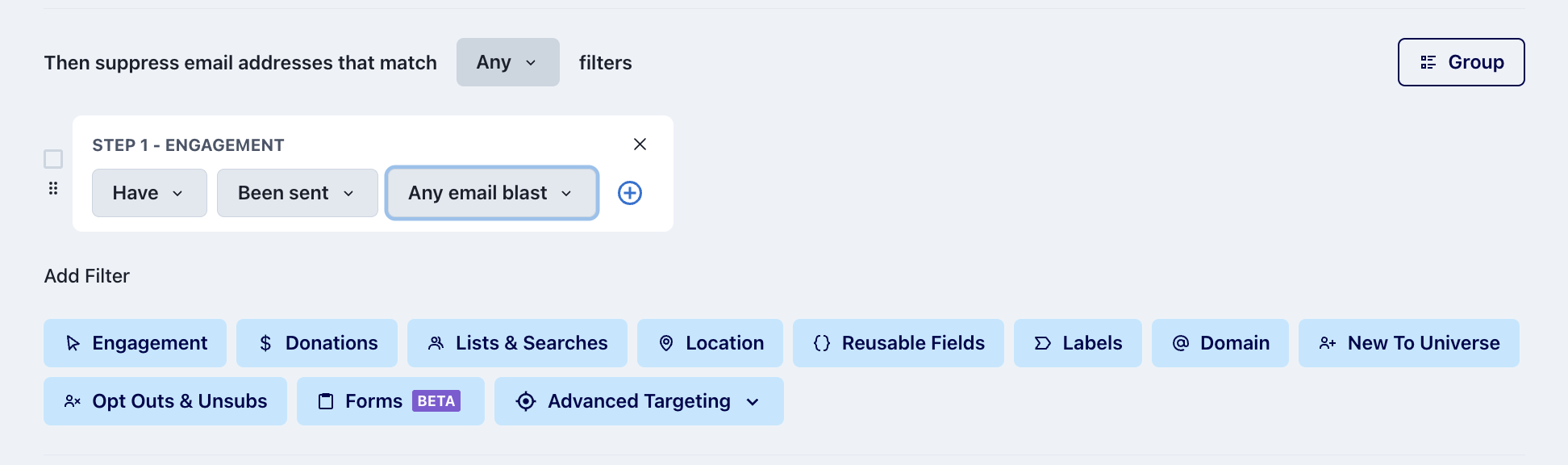
Second email and beyond: Suppress anyone who has already received the first Welcome Series email blast (and/or any other blasts), so contacts don't receive the same email twice.
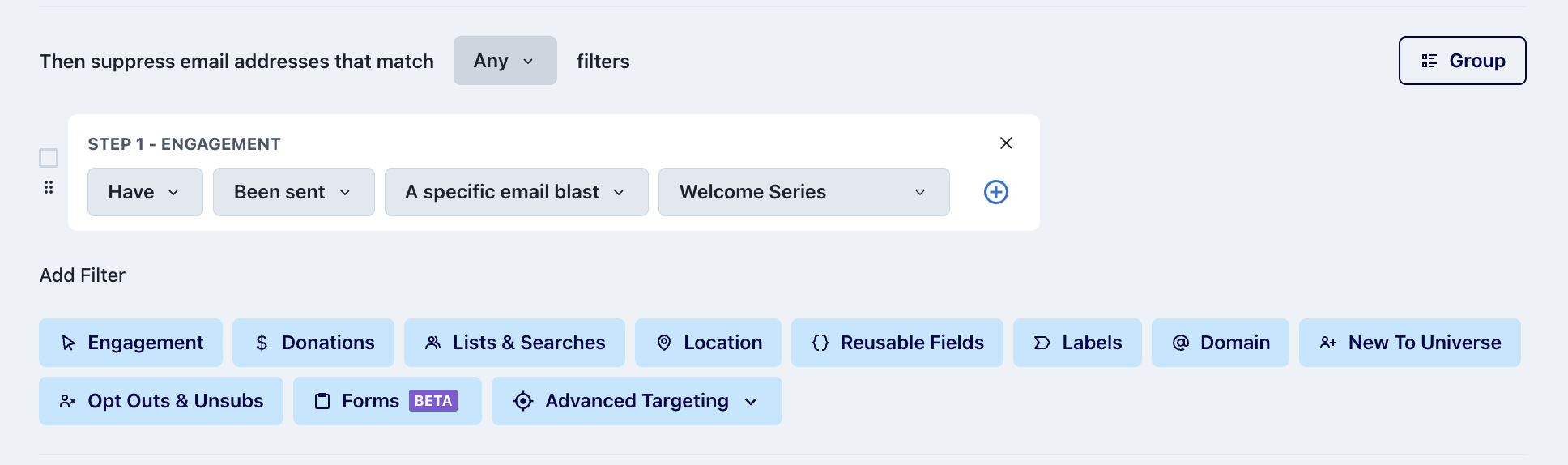
You may have other suppressions that make sense here depending on how you're managing your program and the data associated with it.
Timing: For the most timely outreach, setting your blast to run every 12 hours will minimize the gap between when a contact is added and when they receive your email.