Automatic Expansions
Last updated: September 3, 2026
How It Works
This feature replaces original Automatic Pause and gives you more control over how your broadcasts send without babysitting to manually pause or resume!
Automatic Expansions let you set up multiple pause and unpause steps to a broadcast based on performance metrics like ROI & donation totals, messages sent or dates.
Tips for Setting up your Automatic Expansion:
Attach an audience to your broadcast to access the Automatic Expansions button on the lower righthand side of the broadcast page.
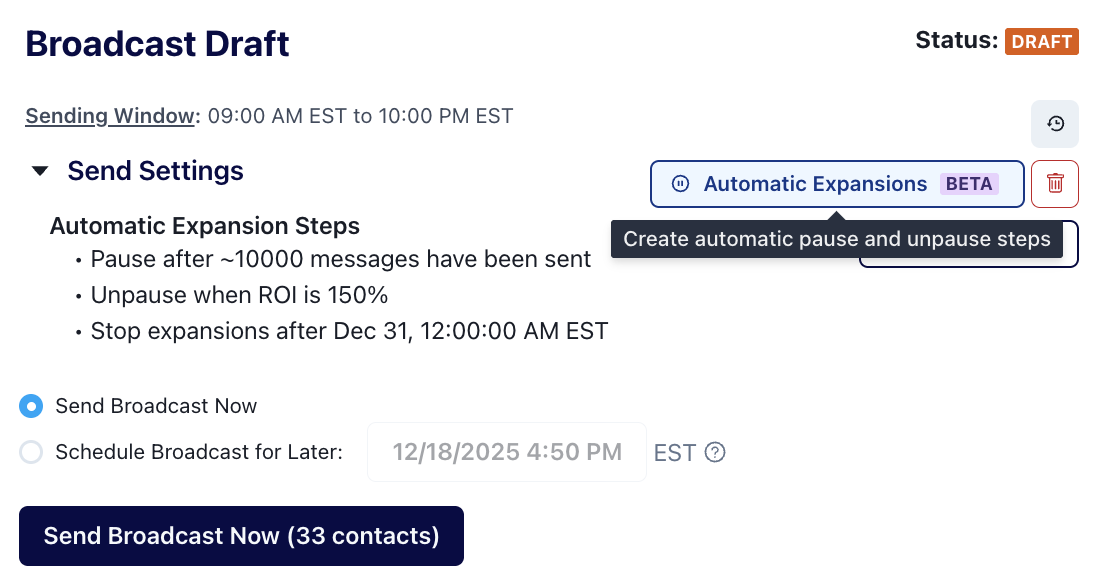
Click the Automatic Expansions button to create or remove pause/unpause steps.
Make sure your pause/unpause steps make logical sense for your desired level of automation.
We don't enforce a specific alternating pause/unpause pattern, so two pause steps in a row would leave the expansion indefinitely paused without manual intervention to resume.
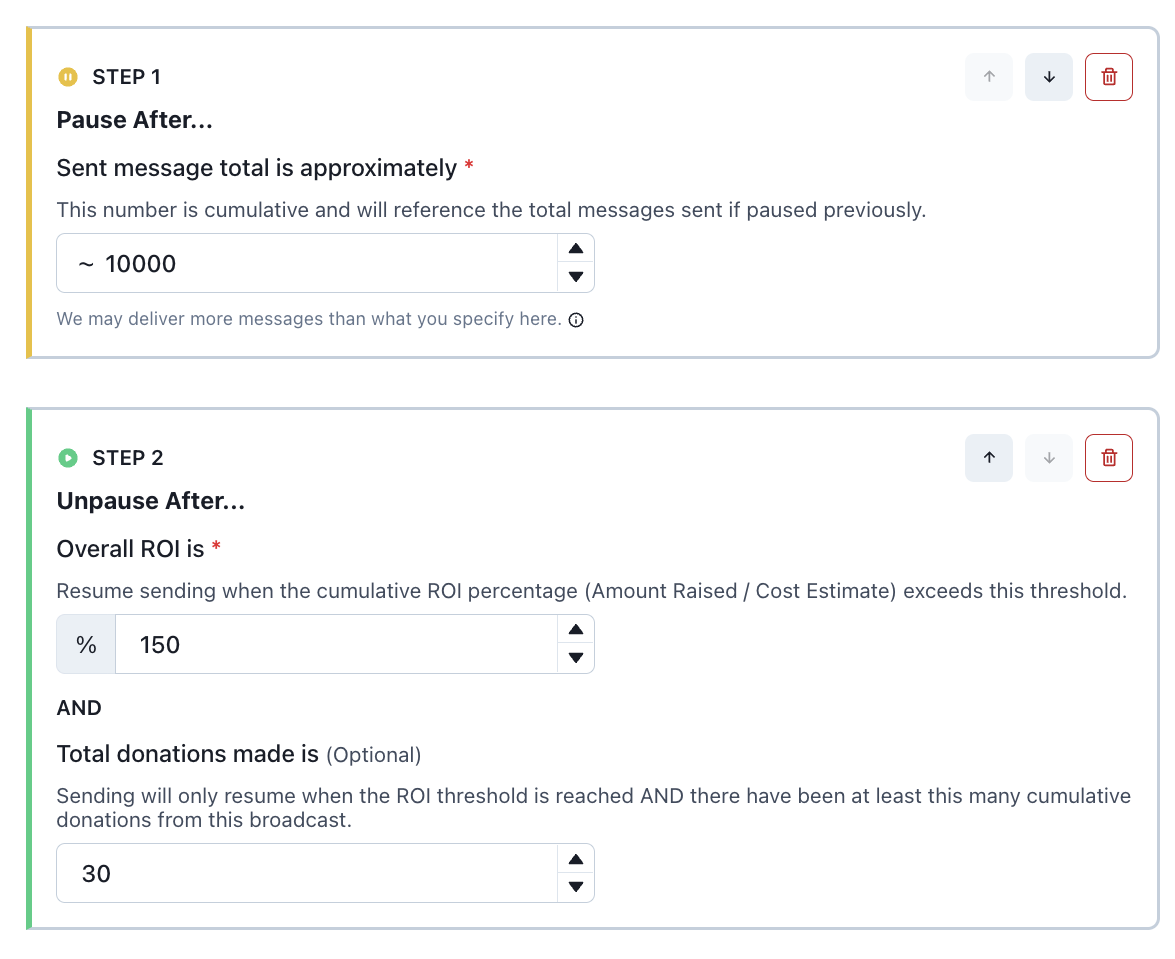
Double check your math: All values are cumulative totals for the entire send!
Ensure that you enter any ROI values as whole percentages, not as decimals.
Example: If you want to pause at 10K messages, then unpause at 15K total messages, enter "10000" then "15000" (not an increment of "5000")
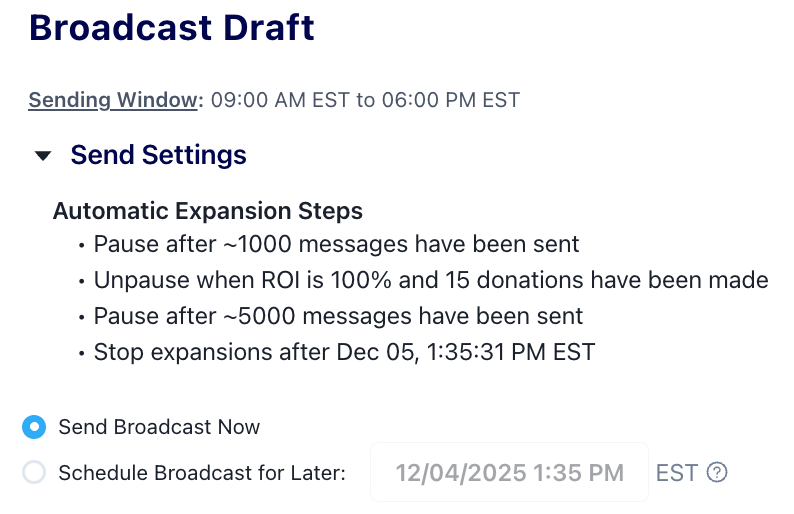
Before you hit "send,", review the summary of your Automatic Expansion steps under the Send Settings section to make sure everything looks correct. You can find this right above the send button on the broadcast page.
Automatic Expansion FAQ
What if I need to stop my expansion?
To completely stop the expansion, remove the automatic expansion via the trash can button.
If you manually pause the broadcast mid-expansion and the next step is an unpause step, note that the broadcast will resume once the unpause step is triggered.
If you manually pause mid-expansion, and your next step is a pause step, your send will be indefinitely paused unless you manually resume the broadcast.
Can I manually resume to my entire list mid-expansion?
Yes. You can remove the automatic expansion via the trash can button and manually resume to send the entire remainder of your list.
How fast do pause/unpause steps trigger?
We wait 3 minutes to let ROI calculations finalize before unpausing, date-based unpauses will trigger immediately
Note: Unpause steps only trigger when broadcast is paused and Pause steps only trigger when broadcast is sending
How is the ROI-based unpause calculated?
Same as the original Automatic Pause: ROI = Total Donation Amount/Current Estimated Cost
When you create an ROI-based unpause step, you will also be required to enter an expiration date that indicates when ROI of the broadcast should stop being calculated. The expiration date will be cleared once all ROI-based unpause steps are either met or removed.
Note: When setting up ROI values for your Automatic Expansions, input them as percentages, not decimals. This is an updated enhancement from original Automatic Pause.
Can I add more steps mid-expansion?
Yes! You can add more expansion steps to a paused broadcast as long as there are more messages left to send
Can I use this with Scheduled Resume?
You can schedule a resume with automatic expansions if the expansion only includes pause steps. This is because unpause steps may contradict the scheduled resume date.
Alternatively, if you wish to incorporate a scheduled unpause within your expansion- we advise adding a date-based unpause step into your expansion.
Does Time Zone Sending work with Automatic Expansions?
Yes, this works the same as with original automatic pause
Does sending by Custom Score work with Automatic Expansions?
Yes, this works the same as with original automatic pause
Have Feedback?
This feature is still being refined based on user feedback. If you run into unexpected behavior, have suggestions, or want to share a screen recording of something confusing, please reach out to support@oneswitchboard.com — we'd love to hear from you.