Archiving Forms
Last updated: May 9, 2025
To help you keep your Forms view tidy, you can now archive Forms!
What does archiving a Form do?
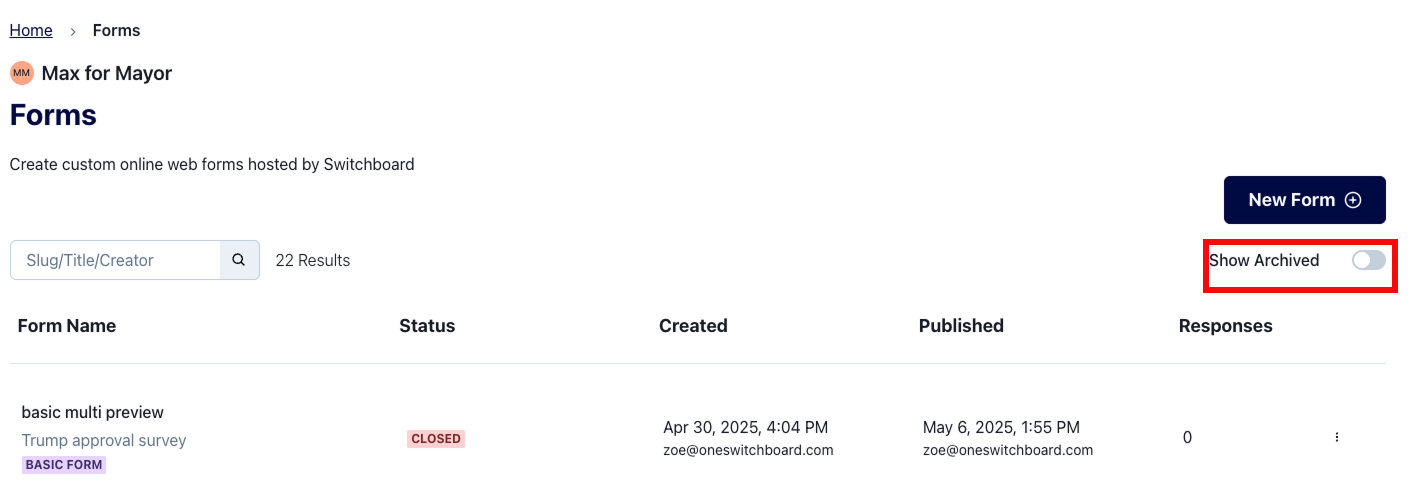
Archiving a Form hides it from the Forms list. But, you can always view archived Forms by clicking the "Show Archived" toggle on the right-hand side of the screen.
Which Forms can be archived?
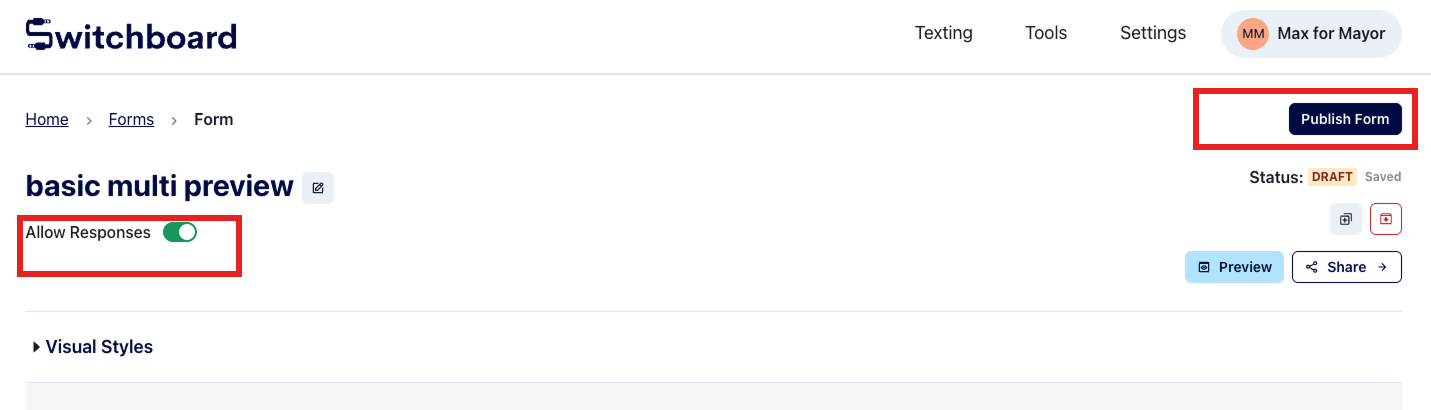
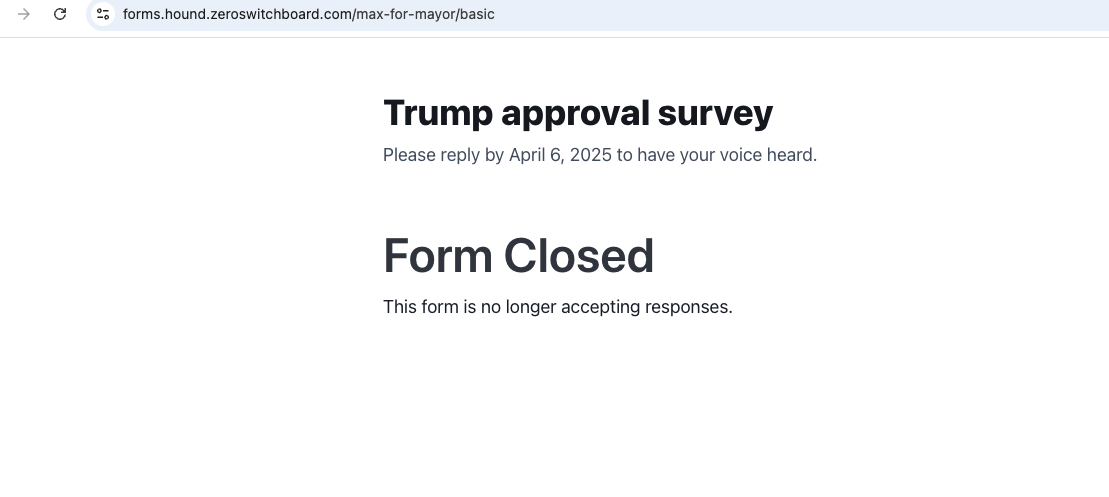
Forms can only be archived if they are no longer accepting responses. "Draft" forms may be archived straight away. But "Published" forms must be closed before you can archive them. Closed forms look like this to a supporter:
Can I un-archive a form?
Yes! Take the following steps:
Visit the Forms view https://oneswitchboard.com/forms
Click "Show archived"
Locate the form you wish to un-archive and click on it
In the upper right hand corner, click the un-archive button (right below Status)
Make sure your Form is Published and Accepting Responses before you share it with your audience