Claim and Release Threads
Last updated: September 17, 2025
Inbox Users: Claiming and Releasing Threads
To avoid team members replying to the same message threads, inbox users can "claim" threads.
To see replies from recipients of your broadcast, head to your message threads from your Switchboard Homepage.

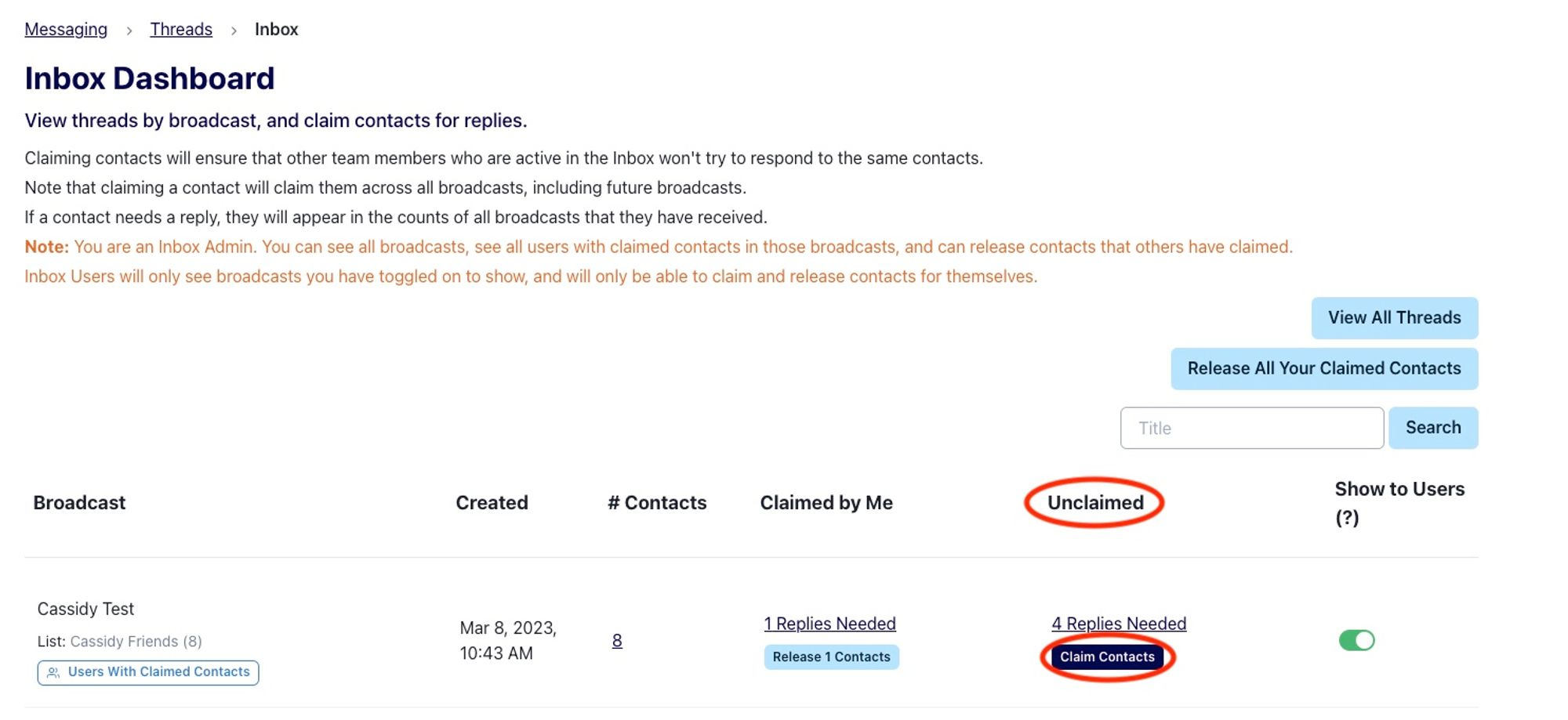
This will bring you to the inbox dashboard. Click
Claim Contactsunder the Unclaimed column. This will allow you to claim batches of up to 10 contacts in need of a reply.Once a contact is claimed by any inbox user or admin, that contact will remain the responsibility of that user. Anytime the contact replies, whether its immediately or in a week, whoever claimed the contact will be responsible for replying.
💡 This is a great feature for campaigns with volunteers who want to build lasting relationships overtime, run a relational program, or even maintain a consistent point of contact with the campaign for the voters they are texting.
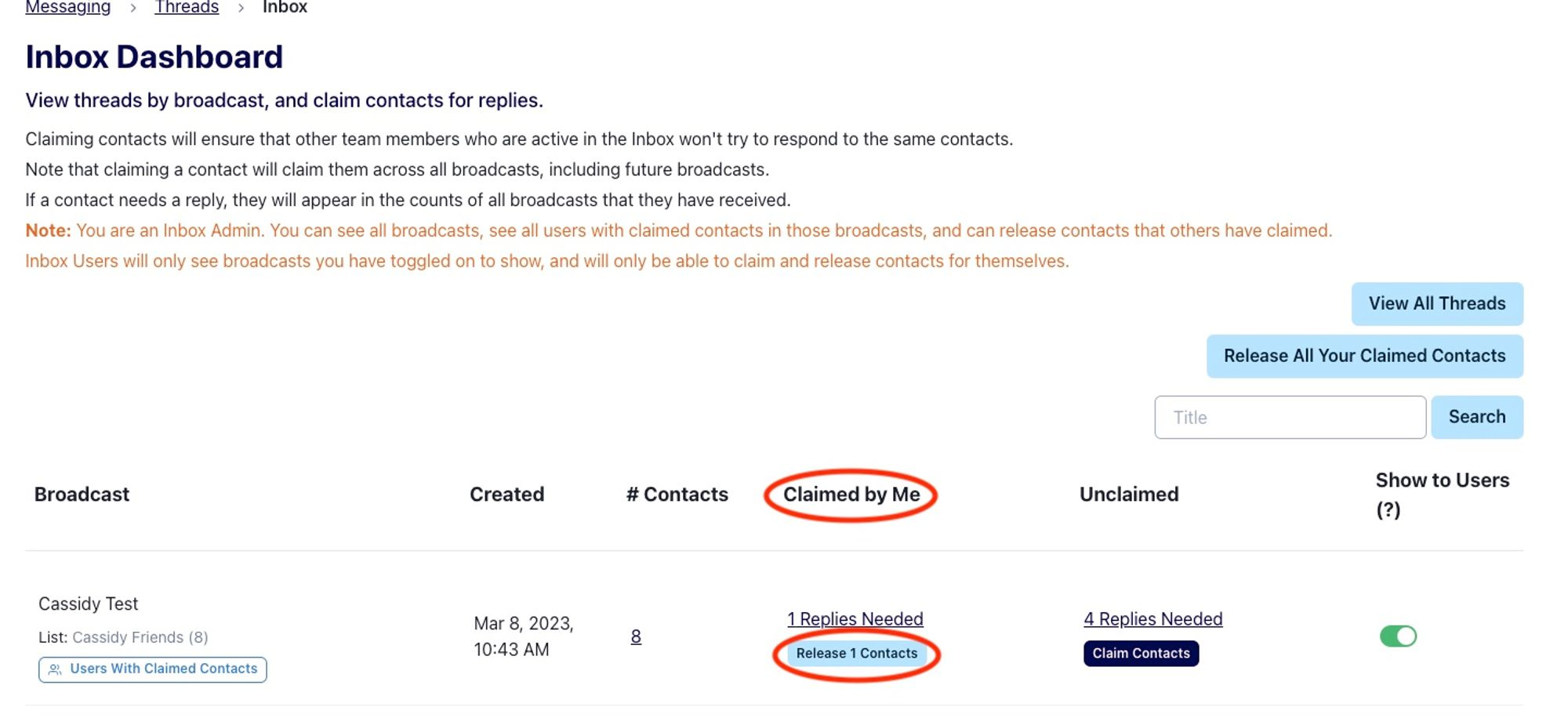
When you’re ready to reply, click “X Replies Needed” under Claimed by Me which will take you to an inbox where you can begin replying to your claimed contacts. If you have replied to everyone, and you still have time to spare, you can claim more contacts until there are 0 replies needed.
The “Claim Contacts” button claims 10 contacts at a time, so click the button as many times as you have time for!
As mentioned above, these contacts will be auto-assigned to you across future broadcasts unless you release the contacts. In order to ensure responses are prompt, once a user is done with their shift or logging off, they can choose to release any claimed contacts so another user can claim them in the future! That way, even if the recipient’s response is delayed, they will always get a prompt answer from your organization. To release the contacts, click Release Contacts under the Claimed by Me column.
Inbox Admins: Allowing Users to Claim Contacts
“Message Threads” is your organization’s inbox. Anytime you send out a broadcast, responses will appear here. Anyone who needs a response from your organization for any broadcast will pop up at the top of your inbox.
In Message Threads, you can manage inbox users such as your teammates, staff, volunteers, etc. You can add labels to better organize contacts, and build lasting relationships with supporters, donors, and voters.
Switchboard keeps a record of the entire conversation with a recipient. You can see every response you have received from a recipient regardless of the broadcast. This allows organizations to have meaningful text conversations and drive supporter and donor retention.
After you send out your broadcast, and recipients of your text start replying, head to your message threads from your Switchboard Homepage.

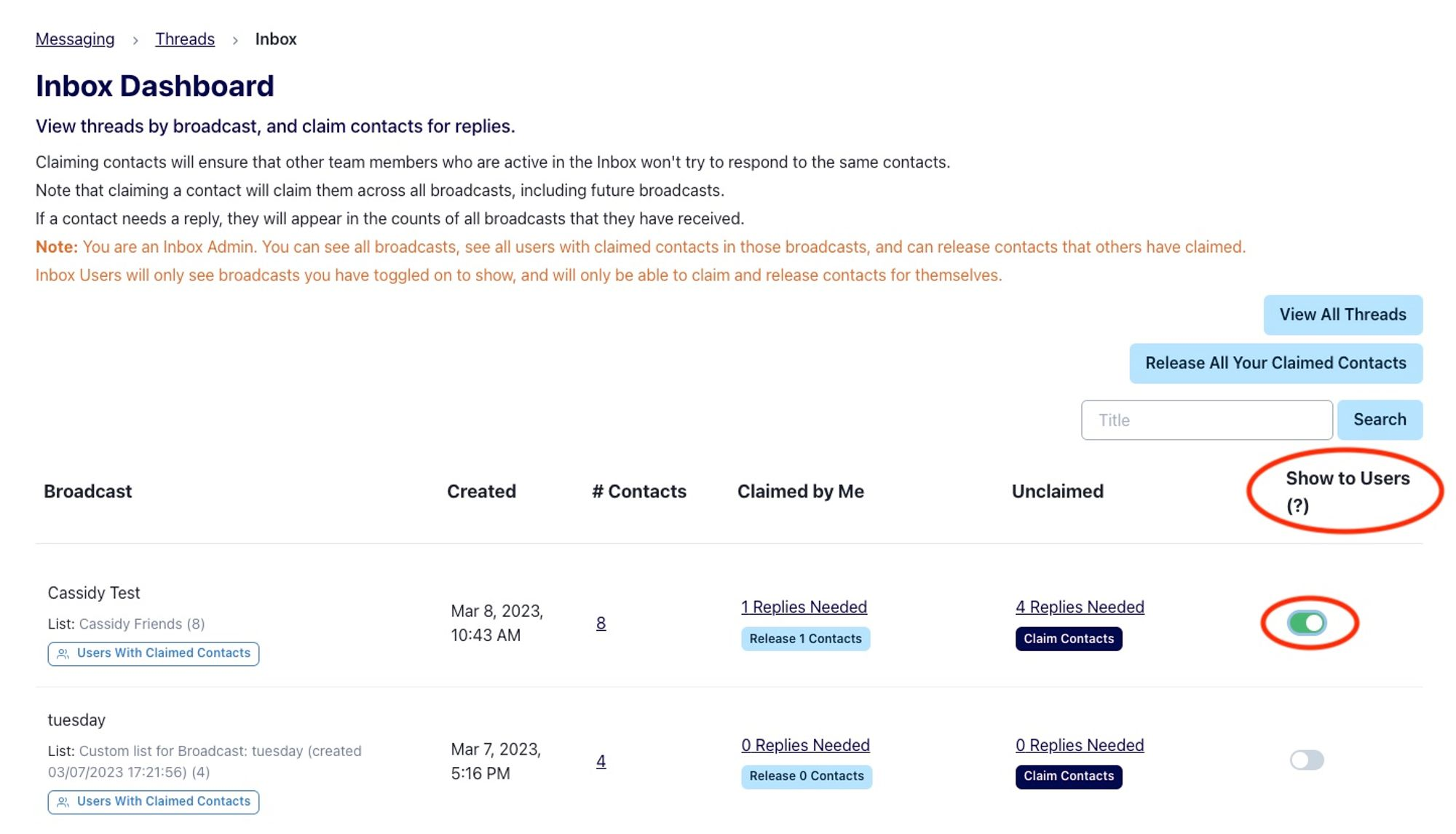
As an administrator, this is where you will turn on the ability for volunteers to claim replies from certain broadcasts. Just toggle this switch to green for any broadcasts you want your inbox users to be able to access and claim messages from under Show to Users.
You will then be able to see how many replies are unclaimed under Unclaimed. Users will be able to claim contacts in 10 reply batches.
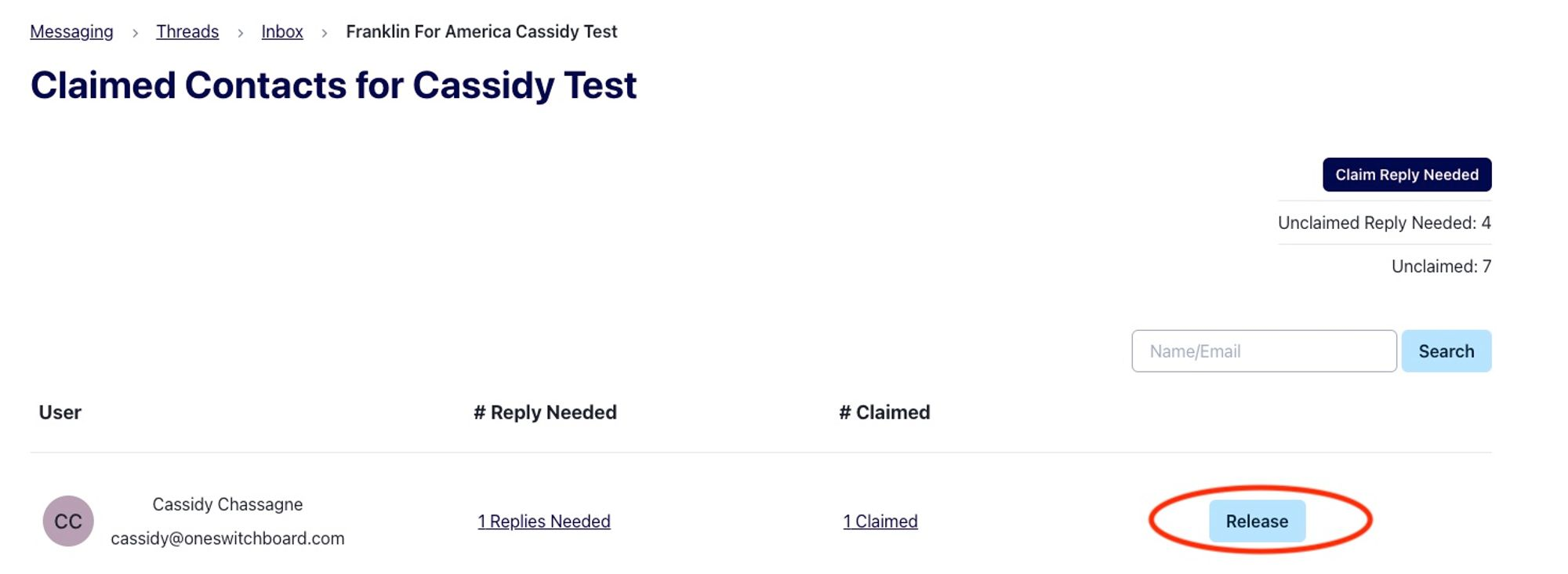
As an admin, you can track the process of claiming, replying, and releasing by inbox users in your account by clicking on Users With Claimed Contacts.

This will open a new page where you can see everyone that has claimed any contacts within a broadcast. Of those, you can see how many still need a reply.
If you think one of your inbox users is no longer active and forgot to release their contacts, you can always release contacts for them. This will allow unread messages to go back into the unclaimed pool of contacts for another inbox user to claim.