Viewing Message Threads
Last updated: September 23, 2025
Viewing responses to your broadcasts
After you send out your broadcast, and recipients of your text start replying, head to your Threads Dashboard from your Switchboard Homepage.
Click
View All Threadsto view your inbox. As an administrator, Switchboard recommends this option so you can see every reply.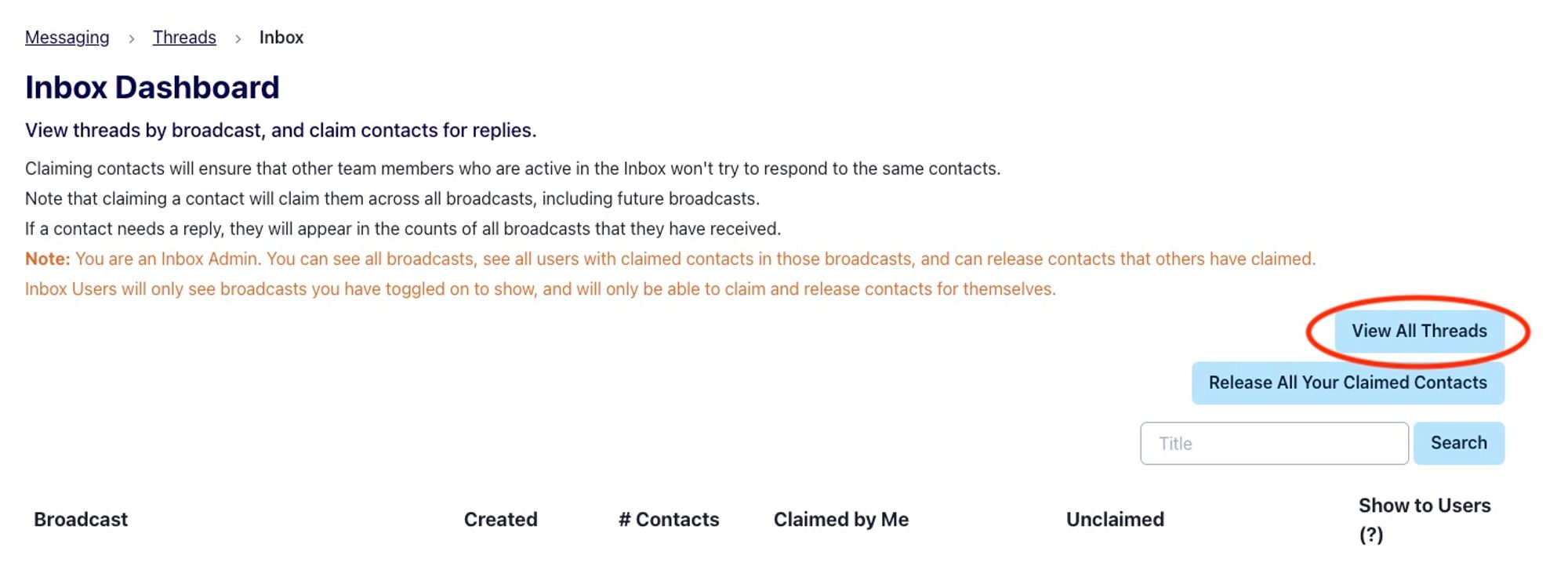
Switchboard recommends this route to replying to inbox messages if you are a team of one or two. For larger teams of volunteers, we recommend the claiming and releasing structure within the Inbox Dashboard.
This will open a new page where you will be able to reply directly to incoming messages.
Switchboard’s inbox is unique in that we give users the full historical overview of a conversation with a specific recipient. This allows you to understand the relationship the recipient has had with your organization. You can see the broadcast names and associated time stamps for each message.
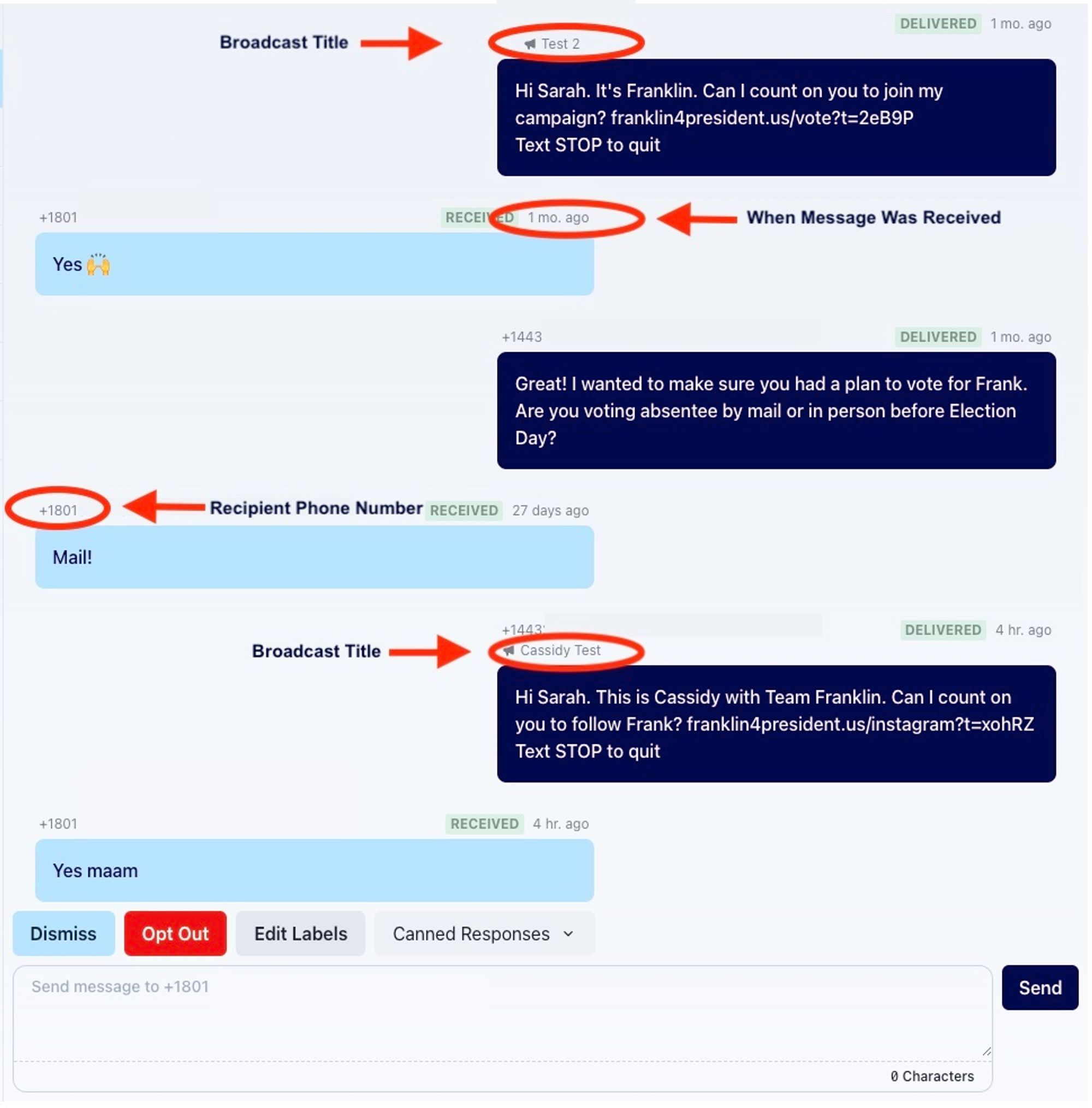
You can reply by typing into the white box or using canned responses.
You can see which labels have been applied to a contact to better understand the individual you are talking to, add an existing label, or even create a brand new label by typing into the box. This is great for keeping track of any important data that pertains to a contact.
You can manually opt someone out of receiving further messages.

If you have received a message that doesn't need a reply, you can click dismiss. If for any reason that contact replies again in the future it will pop up as "reply needed" for whomever claimed the contact! If you want to find a thread that was previously dismissed, you can edit filters to include messages that don't need a reply.

Bulk dismissing messages
You can select multiple threads to dismiss at once in your inbox.
Alternatively, you can upload a CSV file with a
phone_numberfield and dismiss threads associated with those phones. This works well for teams that like to review messages via csv export.
Edit Filters
The Switchboard Inbox by default displays messages that need a reply. If you are looking for a specific recipient and cannot find the associated thread, you probably need to adjust the default filters. Click
Edit Filtersto open up this menu.You can change your filters to show contacts based on reply status, opt out status, last incoming message date, and more.