Organization Settings
Last updated: January 9, 2026
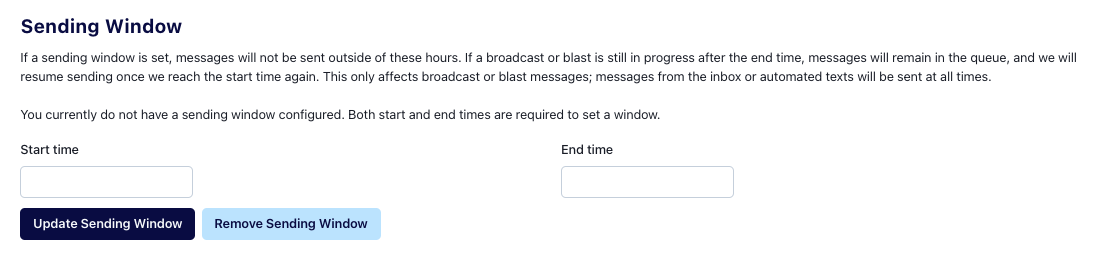
Sending Window
If a sending window is set, broadcast messages will not be sent outside of these hours. If a broadcast is still in progress at the end of sending hours, messages will stay queued, and Switchboard will resume sending them once the start time is reached again. This only affects broadcast messages – inbox or automated series messages will be sent at all times. See https://oneswitchboard.helpdocs.io/app/contentat
Note - you can automatically pause a broadcast after a certain date and time too.
How to set your sending hours
Navigate to your Switchboard Menu in the top right corner.
Click All Organization Settings.
Set your Sending Window at the top of the page.
Two Factor Authentication
Go to All Organization Settings in your Switchboard Menu.
Click Security.
Clicking the toggle button (it will turn green) will require every user in your organization to set up and use two-factor authentication when logging in.
Users can use any authenticator app, such as Google Authenticator or Authy. Existing users will be prompted to set this up the next time they use Switchboard. If disabled, users can still enable two-factor authentication on their own by visiting their profile.
After you click the toggle to enable it, a new window will pop up. Click enable.