Tips for Managing Your Messaging Programs
Last updated: December 10, 2025
Pause Broadcast in Progress
If you need to edit a broadcast that’s already sending, you can pause the broadcast. This button will appear below the Send Broadcast button once your broadcast is sending.
You will only be able to pause the messages that are in the Queued by Switchboard bucket. Any texts that are already Delivered or Queued by our Texting Provider have already been sent and can’t be paused or edited.
When you are ready to resume your texts you can click Resume Sending.
Send a Sample Message
Before sending your broadcast, you can use the Send Sample Messages to Yourself or Your Team section at the bottom of the page to check that your message looks good on a phone.
The contents of the message will use personalization data from a random phone in this broadcast's phone list, to make the test as realistic as possible.
Note: Don’t expect to see your name or personal information here.
You can either reuse a phone list you’ve already used before or create a new list from a CSV. If creating a new list, all you need to include is the phone number(s) of who you want to receive the test. We will default to the phone number in your profile which you can update here.
The CSV should only contain one column with the column header reading “cell” and phone numbers below in any format.
Upload Media to a Broadcast
Once you navigate to Broadcasts from your messaging home screen, and are in your broadcast (new or draft), find the Compose Message section. The first sub-section under Compose Message is MMS Media (Optional). This is where you will upload your media!
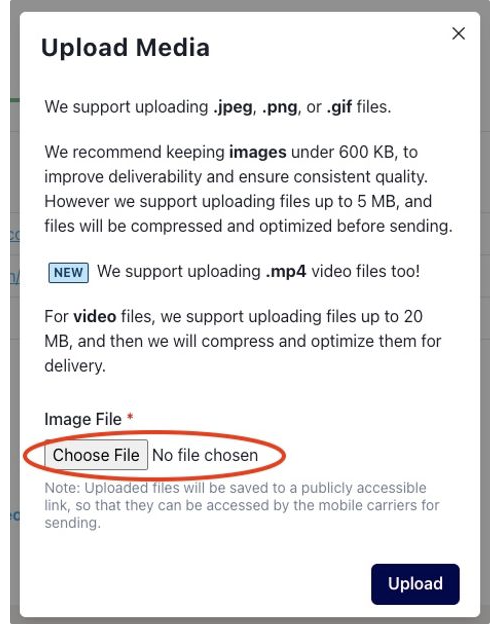
To upload new media, click Upload Media.
This will open a new window. We support uploading .jpeg, .png, .gif, and .mp4. To upload your file, click Choose File.
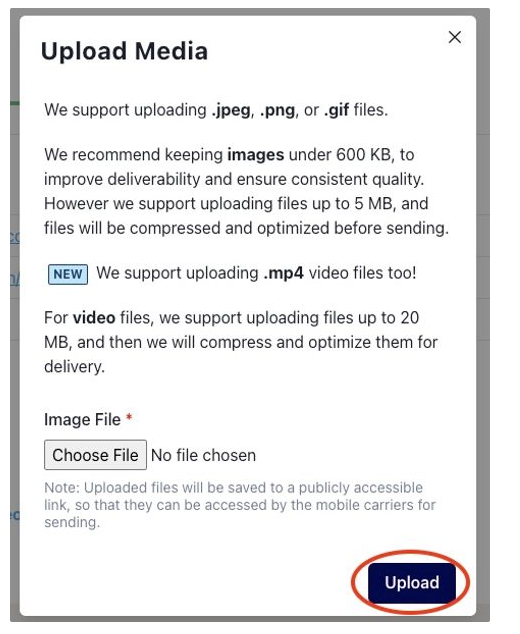
After you choose your file, click upload.
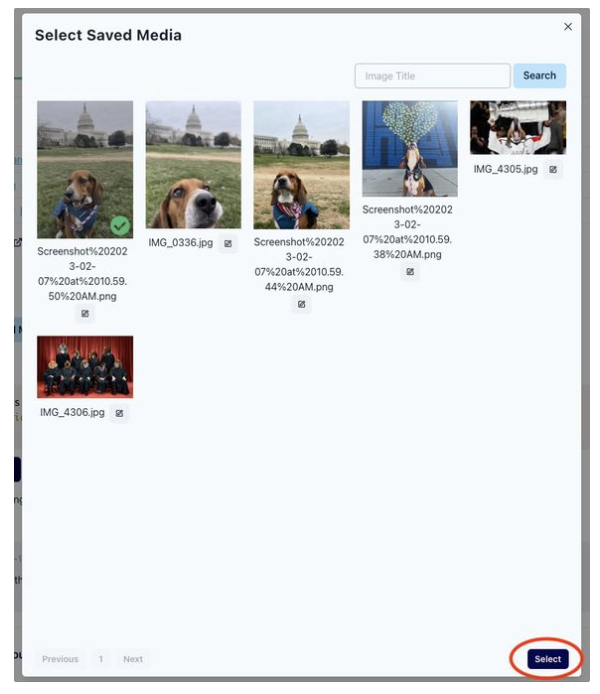
To use media you’ve previously uploaded, click Saved Media.
This will open up a window of all of your previously used saved media. Here, select one of the images/videos/gifs and then Select.
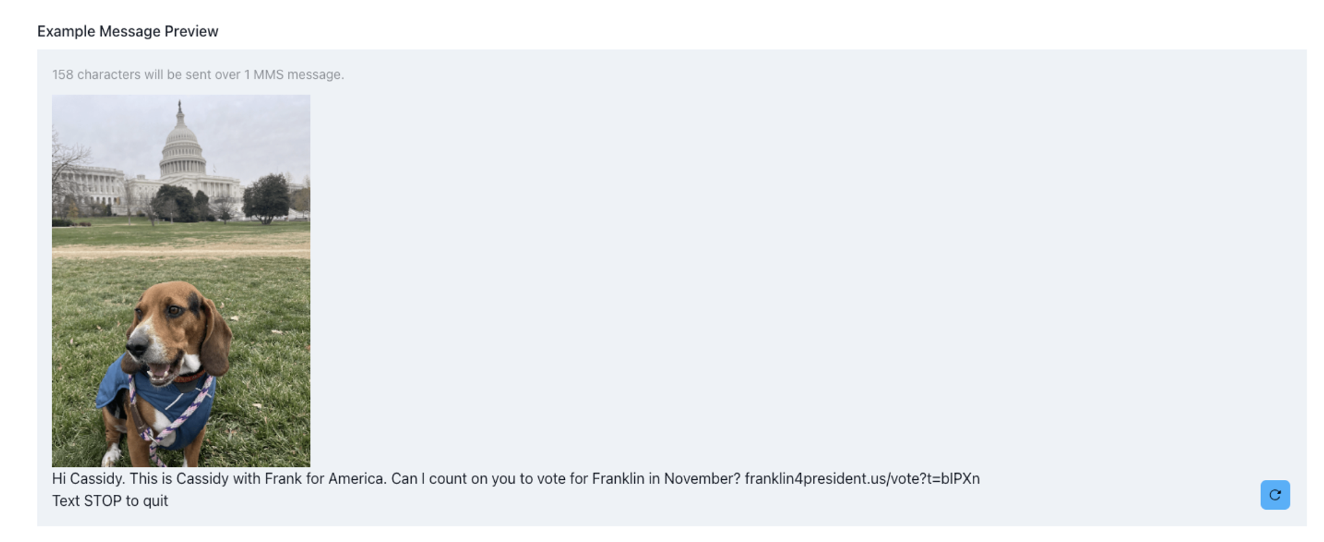
After you select your media, from either option, you will see it appear in your example message preview.
If you decide you do not want to use that image, you can click the red x next to the name of your media under MMS Media (Optional).
Tips for Formatting Your Texts
In Switchboard you can customize your messages to make them personal to the individual receiving them.
Why should I customize my messages?
There are a lot of different reasons to customize messages, but the main reasons you should invest time into learning how to do this is because it could help:
Drive engagement: If the recipients of your messages are receiving multiple texts a day from other campaigns, you want to make sure your messages stand out! Either including their first name, or another custom element, could help ensure they click through your message over anything else they may be getting in their inbox!
Increase Donor Activity: By customizing your messages to donors, you are ensure that you are asking for the right amount of money from each donor (no more and no less). You can do this by utilizing their donation history within your messages.
Tracking Engagement: In Switchboard, we allow individuals to track clicks/engagement/donations down to the phone number. We do this by allowing you to use custom shortlink tracking with our free shortlinks we provide every Switchboard user! This way, you know who is engaging with your text and that can help you target for future sends.
Before you can start customizing your messages:
Before you can fully customize messages like a pro, you need to know what a custom field is.
A custom field is a variable that holds unique information about a specific person or entity that you want to include in your communications, such as a first name, last name, email address, phone number, donation amount, or any other data point that is important to your campaign or organization.
In order to ensure you can utilize custom fields when texting, you need to make sure the data is available in whatever format your phonelist is in. For CSVs this is just an additional column that has information about each phone number on your list. For NGPVAN and ActBlue lists, they automatically come with a set of custom fields you can utilize; they are not as custom as a CSV.
Customizing your Messages
You can learn more about customizing your messages here!