Send Switchboard Webhook Events to Slack
Last updated: October 29, 2026
You can trigger Slack messages whenever something happens in Switchboard, like when a broadcast starts sending or pauses. Point a Switchboard webhook at a Slack Workflow Builder workflow, and each piece of event data arrives as its own field that you can drop into a message you design.
Any existing Switchboard webhook event can be sent to a Slack workflow and turned into a custom Slack message.
Before you start, you'll need:
A paid Slack plan (webhook-triggered workflows aren't available on Slack's free plan)
Permission to create workflows in your Slack workspace
Access to edit your Switchboard organization's webhook endpoints under Organization Settings
Note: This only works with Slack Workflow Builder webhook URLs, which start with https://hooks.slack.com/triggers/.
Step 1: Build your Slack workflow
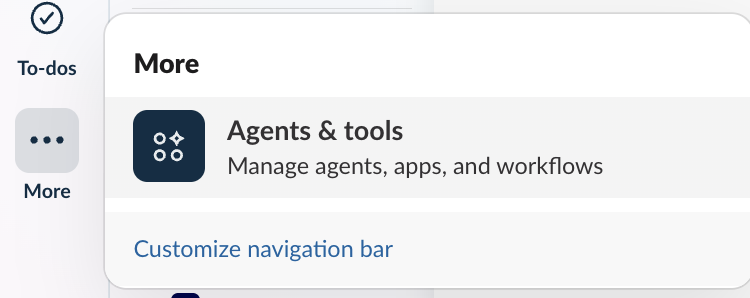
In Slack, open Workflow Builder and create a new workflow.
For the trigger, choose From a webhook.
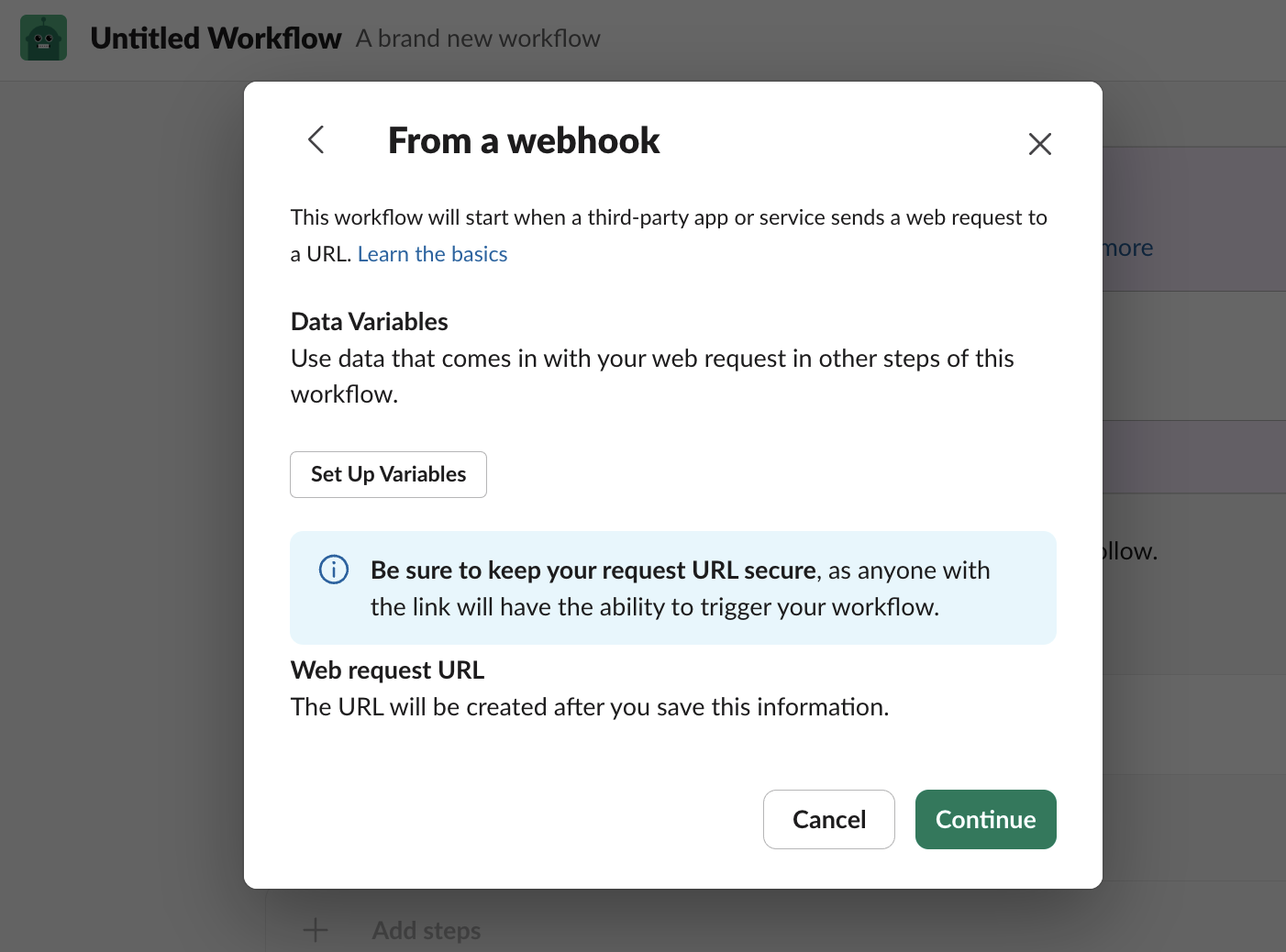
Click Set Up Variables and add each field you want in your message, choosing the Text data type. Type each key exactly as written. The fields you need depend on the event you're building for: see Examples for common use cases below.
Click Done, then Continue.
Click Add Step and choose Send a message to a channel.
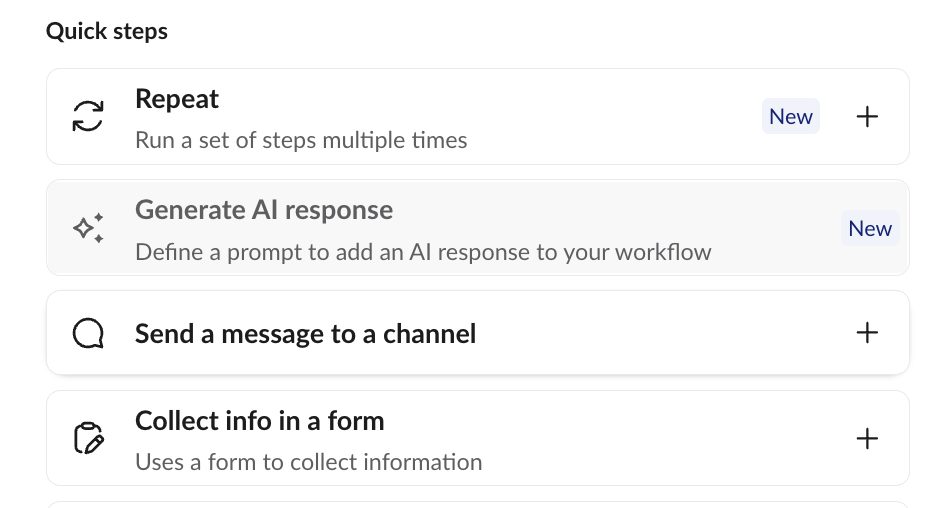
Under Select a channel, pick where alerts should post. We recommend a test channel to start.
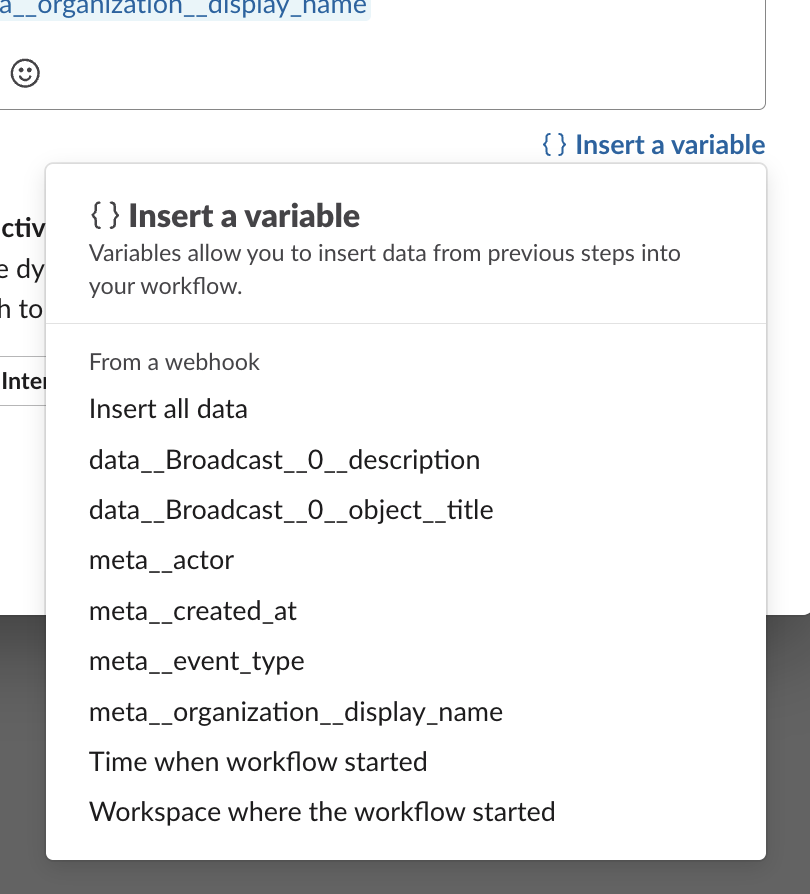
Write your message. Wherever you want Switchboard data, click Insert a variable and choose a field. Then click Save.
Don't type field names into the message by hand. A field only fills in with real data if you add it with Insert a variable, where it shows up as a highlighted variable.
Publish the workflow by clicking the button in the upper righthand corner.
Click the pencil icon next to From a webhook and copy the web request URL. It starts with
https://hooks.slack.com/triggers/. Keep it private: anyone with this URL can trigger your workflow. You will paste this into Switchboard as the destination URL in Step 2.
For more detail, see Slack's guide: Create a workflow that starts outside of Slack.
Step 2: Add a Switchboard webhook that points to your workflow
In Switchboard, go to Organization Settings → Webhooks and click New Endpoint.
Name: something you'll recognize as this workflow, like "Slack: incoming texts".
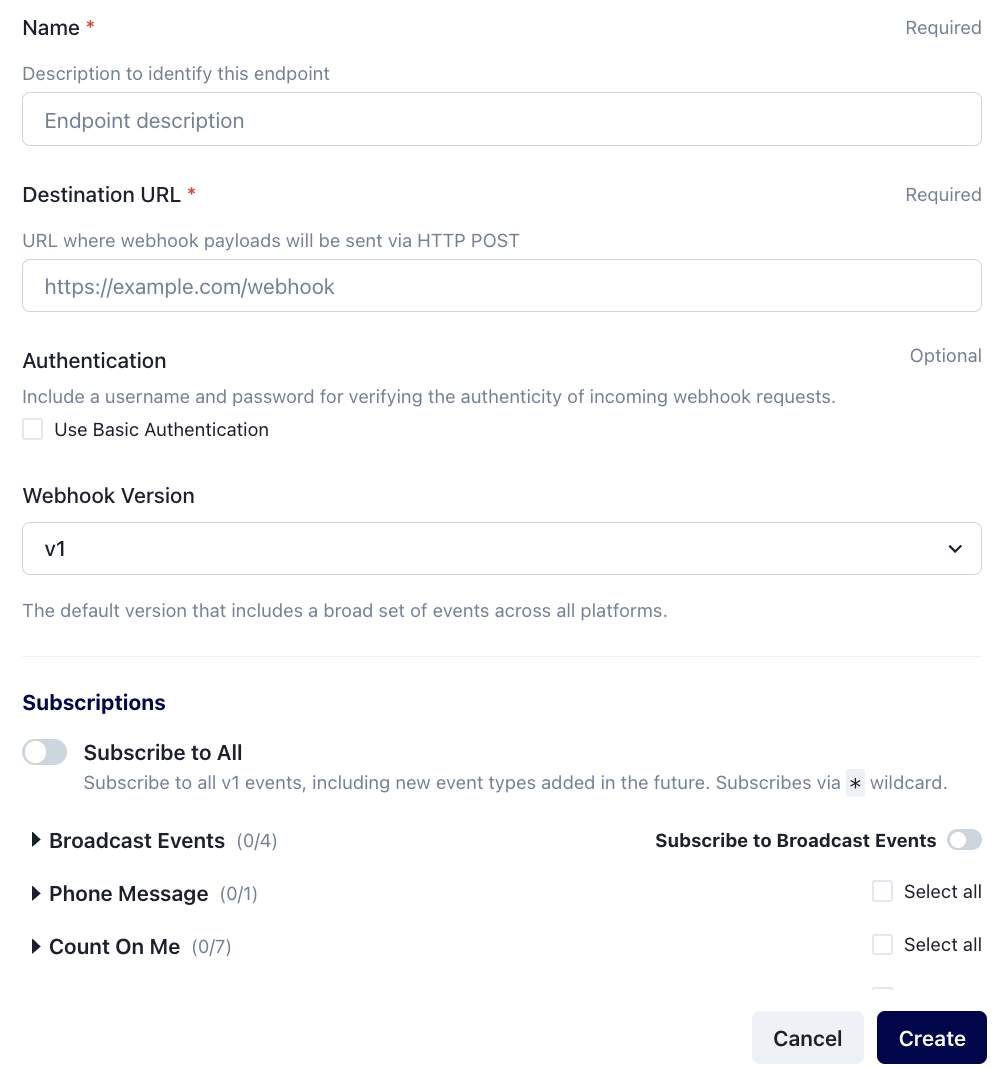
Destination URL: paste the Slack URL from Step 1.
Webhook Version: choose v1.
Subscriptions: check only the events your workflow is built for (see Examples for common use cases below). Avoid Select all: different events include different fields, so a message designed for one event can post with blanks for another. Give each event type its own workflow and endpoint.
Click Create.
Step 3: Test it
Make the event happen in Switchboard, for example by sending a test broadcast or texting one of your sending numbers from your own phone. A message should post to your Slack channel within a few seconds.
Troubleshooting:
If the message posts with blank values, a variable name in your workflow doesn't match what Switchboard sent. In Organization Settings → Webhooks, click your endpoint, then click the event and scroll to Request sent. That shows exactly what Slack received, with each field's full name (the Payload section above it uses Switchboard's standard format instead). Compare those field names to your workflow's variables. They must match exactly, including the double underscores.
If the message shows field names instead of real values (for example, it posts
{data__Broadcast__0__object__title}instead of your broadcast's title), those fields were typed or pasted into the message as plain text. This often happens when copying a sample message from this guide. To fix it, open the message step in Workflow Builder, delete each field name, and add it back with Insert a variable. Inserted variables appear highlighted; plain text doesn't. Then publish your changes.If nothing posts, check that the endpoint is enabled and the Destination URL is your workflow's
/triggers/URL.If nothing posts and the event shows a 400 Bad Request error, Slack rejected the message. Check Response received on the event for Slack's reason. This usually means a variable is named incorrectly, or every variable in the message came through empty. Check your variable names against Request sent, and include some plain text in your message (like "Email:") so it isn't made of variables alone.
Examples for common use cases
Each example lists the webhook event to subscribe to (Step 2), the variables to add (Step 1), and a sample message. Wherever you see a field in curly braces, add it with Insert a variable in the Slack Workflow editor.
These are just some examples to get started. We encourage you to explore different formatting and styling to best fit your needs.
Broadcast status changes
Subscribe to: broadcast.status_changed (under Broadcast Events)
Variables:
meta__organization__display_namedata__Broadcast__0__object__titledata__Broadcast__0__descriptionmeta__actor
Sample Message:
📣 {data__Broadcast__0__object__title}: {data__Broadcast__0__description}
{meta__organization__display_name} · by {meta__actor}
Posts in Slack as:
📣 GOTV reminder: began sending
Smith Campaign · by noreply@oneswitchboard.com
The description is one of:
began sending,paused,unpaused,stopped,completed.This includes changes Switchboard makes automatically, like a scheduled broadcast starting or an automatic expansion pausing a broadcast. For those,
meta__actorisnoreply@oneswitchboard.com.Messages can't link directly to the broadcast in app yet (we're working on it), so include the title to help your team find it.
Incoming text messages
Subscribe to: phone_message.received (under Phone Message)
Variables:
meta__organization__display_namedata__PhoneMessage__0__object__textdata__PhoneMessage__0__object__from_numberdata__PhoneMessage__0__object__to_number
Sample Message:
💬 New text to {meta__organization__display_name}
From {data__PhoneMessage__0__object__from_number} to {data__PhoneMessage__0__object__to_number}
"{data__PhoneMessage__0__object__text}"
Posts in Slack as:
💬 New text to Smith Campaign
From +12175551234 to +12025550100
"Yes, I can volunteer Saturday!"
This posts every incoming text, so it works best with low to moderate reply volume. Slack runs a workflow at most once per second, so replies after a large broadcast can arrive faster than Slack posts them.
Consider using a private channel. Posts include senders’ phone numbers and what they wrote. Note: Posts show the sender's phone number, not their name, and images in incoming messages aren't shown.
Identifying the related broadcast is limited. Each text includes the ID of the broadcast it's replying to (
data__PhoneMessage__0__object__precipitating_broadcast_id), but not the broadcast's name or a link to it, so you'd need to look up the ID in Switchboard. We may make this easier in the future.
Donations received
Subscribe to: unified_contribution.created (under Contribution (any platform))
Variables:
meta__organization__display_namedata__Contribution__0__object__amountdata__Contribution__0__object__order_number
Sample Message:
💸 New donation: ${data__Contribution__0__object__amount}
{meta__organization__display_name} · Order {data__Contribution__0__object__order_number}
Posts in Slack as:
💸 New donation: $50.00
Smith Campaign · Order sbc_k7m9x2p4r8w1
This fires for donations from any connected platform, including Count On Me and ActBlue.
It doesn't include the donor's name or email, or the name of the donation form.
Form submissions
Subscribe to: form_response.created (under Count On Me)
Variables:
meta__organization__display_namedata__FormResponse__0__object__data__first_namedata__FormResponse__0__object__data__emaildata__FormResponse__0__object__data__phone_numberdata__FormResponse__0__object__data__zip_code
Each form answer is its own variable: data__FormResponse__0__object__data__ plus the field's ID, as one complete key. Don't split it into separate variables. Add variables only for fields your form actually has.
Sample Message:
Org: {meta__organization__display_name}
Form submission received from:
First name: {data__FormResponse__0__object__data__first_name}
Email: {data__FormResponse__0__object__data__email}
Phone: {data__FormResponse__0__object__data__phone_number}
Zip: {data__FormResponse__0__object__data__zip_code}
Posts in Slack as:
Org: Smith Campaign
Form submission received from:
First name: Jane
Email: jane@example.com
Phone: 2175551234
Zip: 90210
Submit a test response to confirm your form's field IDs (see Step 3).
The event includes the form's ID but not its name, so build one workflow per form and type the form's name into the message.
Donation forms don't trigger this event. Use Donations received above instead.
Consider using a private channel. Posts can include personally identifiable information.
Using multiple Switchboard organizations
You can send events from several Switchboard organizations to the same Slack workflow. Build each workflow once, then connect each organization to it.
Build one workflow for each event type (Step 1), such as broadcast status changes. Include the
meta__organization__display_namevariable in your message so you can tell which organization each post is about.Connect each organization. Switch to each organization and repeat Step 2, pasting the same workflow URL as the Destination URL.
Repeat for each event type you want, such as incoming texts or form submissions.
For example, to see broadcast status changes from three organizations, build one broadcast workflow, then create an endpoint in each of the three organizations using that workflow's URL.
Choosing channels: You can send everything to one channel, which is handy for a single view across all your organizations, or split posts into separate channels by organization or event type. Each workflow posts to one channel, so giving each organization its own channel means building a separate workflow for each. Start with a test channel, see how busy it gets, and adjust from there.
Keep in mind: Slack runs each workflow at most once per second, and every organization connected to a workflow shares that limit. If posts fall behind, move busy organizations to their own workflow.
Managing many organizations? You can create endpoints in bulk with the Public API instead of repeating Step 2 by hand.
Other events and fields
The examples in this guide are a starting point. Any event in Receiving Webhooks can be sent to Slack, and every field in its payload is available. That article lists each event and its fields; to use one in Slack, rename it with these rules:
Nested names are joined with two underscores:
meta.event_typebecomesmeta__event_type.Items in
dataare grouped by theirobject_type, then numbered starting at 0. For example,data[0]with object typeFormResponsebecomesdata__FormResponse__0__, so a form's first name atdata[0].object.data.first_namebecomesdata__FormResponse__0__object__data__first_name.Other lists are numbered starting at 0 too, like
media_urls__0.Every value is sent as text, and times are in UTC.
To see the exact field names for any event, open it on your endpoint in Switchboard and check Request sent (see Step 3).
Questions? Contact support@oneswitchboard.com.