Sending Contact Cards on Switchboard
Last updated: September 24, 2025
How to Create a Contact Card
You can now create a contact card directly in Switchboard! Just click on the Generate Organization Contact Card (.vcf) dropdown menu and enter in the Contact Name that you want to include.
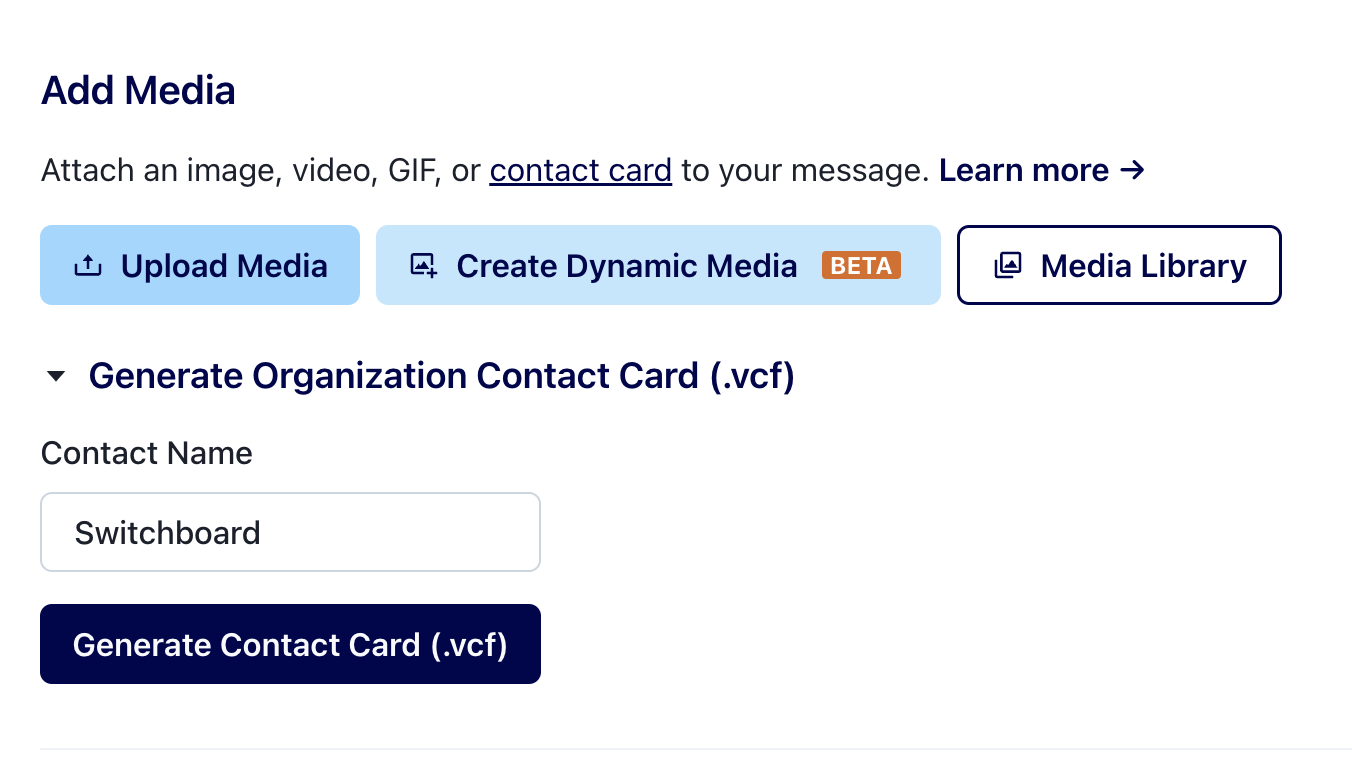
Once you have the Contact Card, you can upload it to Google Contacts or load it on your phone to add a photo, other relevant phone numbers, such as your short code, or the sender you use for your email program! Adding your email to the contact card can help with inbox placement for anyone that saves the contact.
Note: This will generate a contact card that includes ALL of the numbers in your messaging client! So if you are on 10DLC and your organization is sending from multiple phone numbers, all of the numbers will be included in the contact card.
Uploading a pre-existing Contact Card to Switchboard
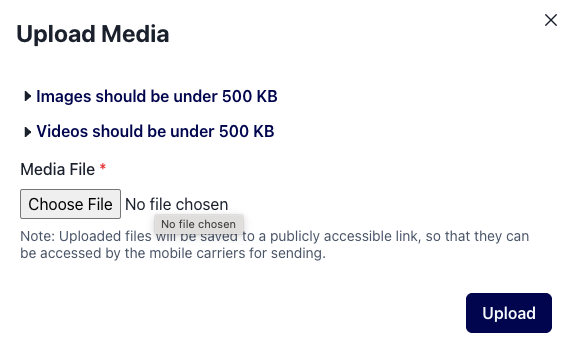
If you already have a Contact Card saved as a .vcf file, you can upload it like any other media file in Switchboard. Learn more here!
Adding a Contact Card to a Keyword or Automated Message
You can automatically send your contact card in response to a keyword or as part of your ActBlue or ActionKit automated responses. Configure that here.
Send your Contact Card as a link
Once your file is uploaded, we give you a public link to the file you can point any shortlink to, so recipients can click to download the contact card! Access this link in your organization's media library. This method allows you to track the number of clicks to your shortlink (though not 100% of clickers will necessarily download the contact card).
Remember file names are visible to end recipients when you send the contact as a link.