Prompt Form Respondents to Save your Contact Card
Last updated: July 15, 2026
When using Switchboard forms, you can prompt respondents to save your contact card. Folks who have your contact card saved may be more likely to see texts from you in the future.
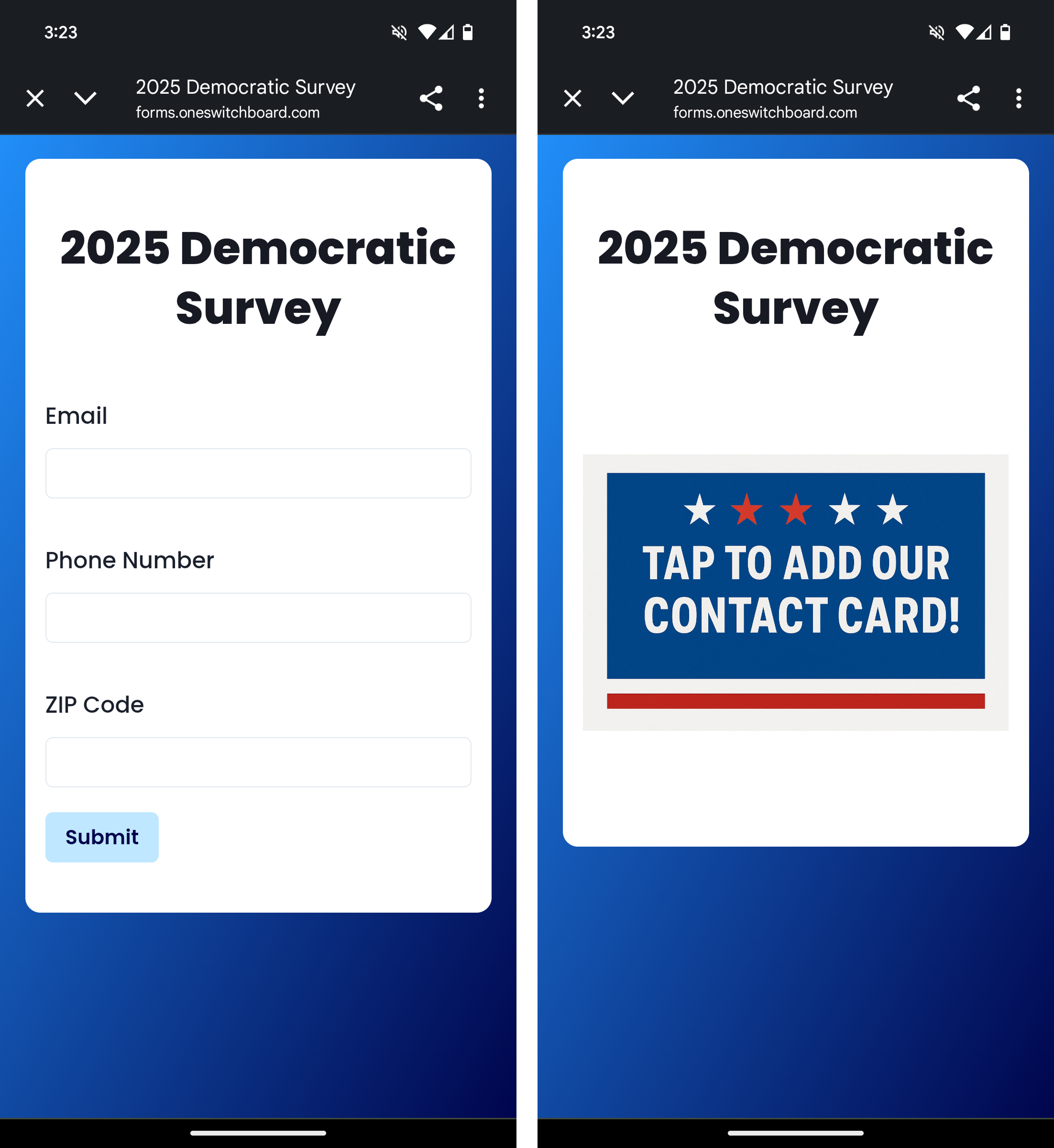
How to set this up
Navigate to the Media Library and upload:
the image you want to use to advertise the contact card
the contact card file (if you need to create a contact card from scratch you can do so on Switchboard by following these instructions, after you create it you will need to upload it)
In a new tab, navigate to Forms and create a form or pick an existing one to edit (it’s useful to keep the Media Library open because you’ll eventually need to copy the contact card and image URLs)
Scroll down to “Response Settings”
Add a post submit header (optional)
In the post submit body, use Markdown syntax to insert the contact card image and URL:
[](contact-card-url)Preview your form (you can use the buttons in the lower lefthand side of the Preview to see the full supporter experience)
Publish your form and grab the Share link
Send to your audience!
Other notes
If you want to track supporter engagement with your card, you can generate a short link for your contact card URL and insert that into the post submit body instead of the regular contact card URL
The "Visits" columns in the Shortlinks tab will reflect taps on the contact card
When building your form, don’t enable a redirect (otherwise the supporter will be taken to that URL before they have a chance to engage with the contact card)
We know this is a somewhat complex setup - considering favoriting this form to pin it to the top of the Forms page, which should make it easier to revisit/duplicate in the future!