July 2025 Product Updates
Last updated: July 15, 2025
👤 Use the Default Test Profile to QA Customizations
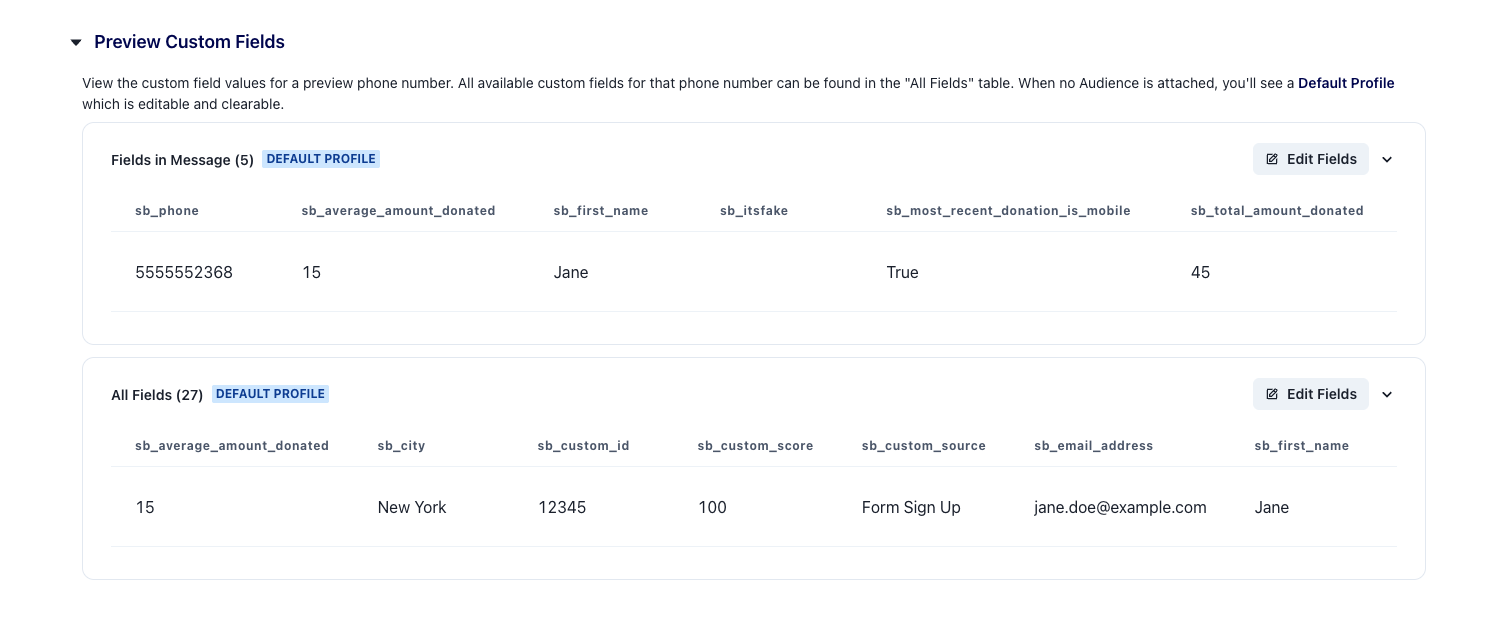
QA your message by using our new test profile with editable custom fields! You can make sure your fallbacks for contacts without sb_first_name ( {{sb_first_name or 'friend'}}) are populating correctly, or that custom ask amounts are being calculated properly. You can adjust the Default Profile’s custom field information in the Preview Custom Fields section of your broadcast draft.
⏰ Send Texts by Time Zone
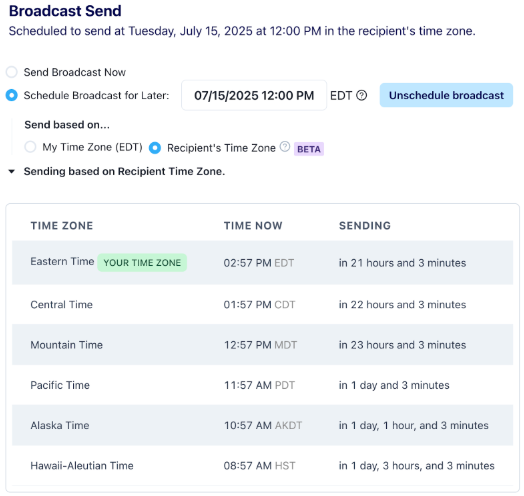
You can now schedule broadcasts using the recipient’s local time zone! Don’t feel like you need to wait until noon eastern to send your messages - you can text New Yorkers at 10am eastern and Californians at 10am their time.
Perfect for nationwide sends or onboarding new supporters from across the country!
📚 Learn more here →
🔁 Transfer Lists Across Switchboard Organizations
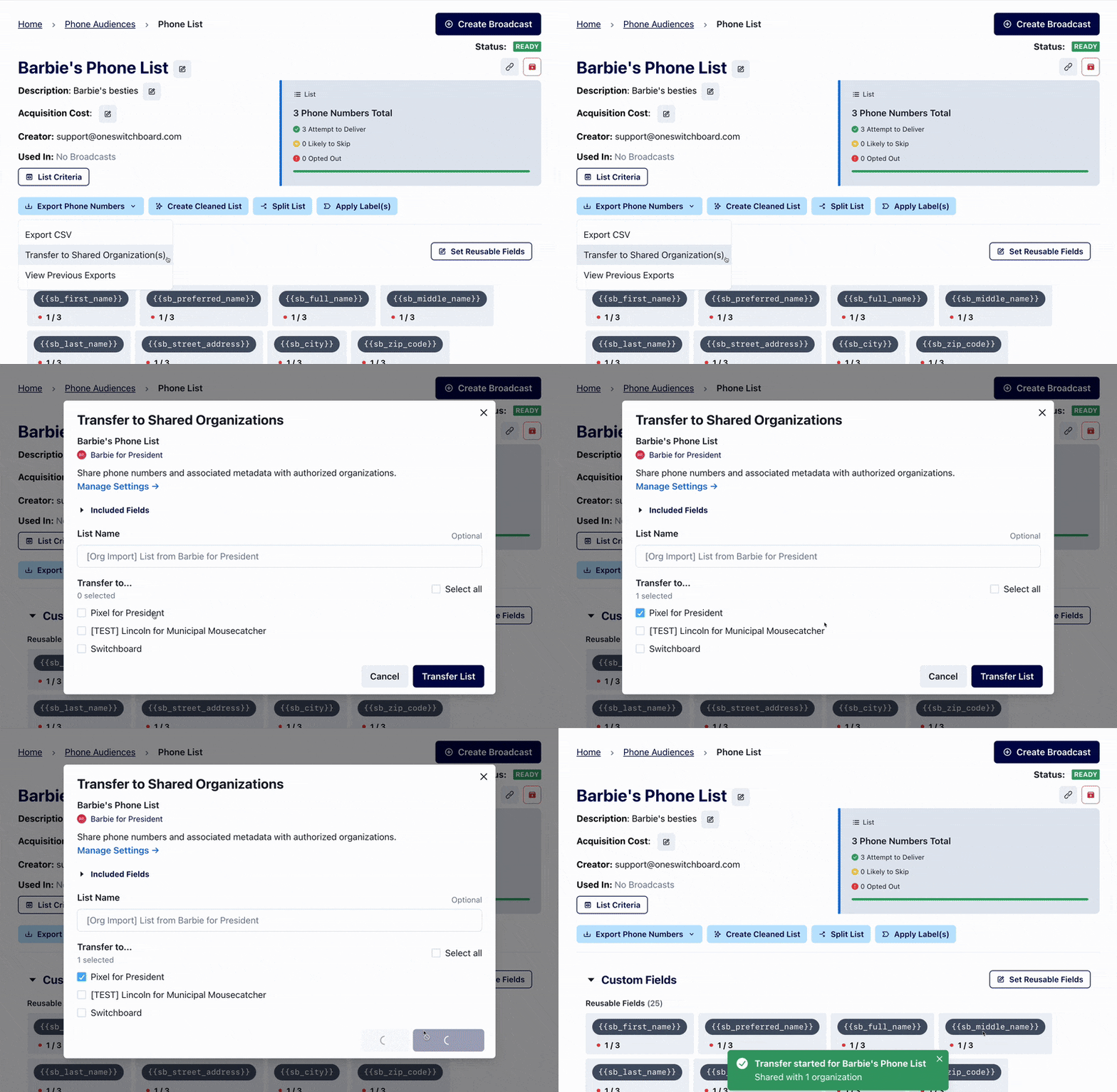
If you manage several Switchboard organizations, you can now transfer phone or email lists from one organization to another without any CSV wrangling. Organization Owners can set this up in a few clicks here.
📞 Import All Phones from NGPVAN Saved Lists
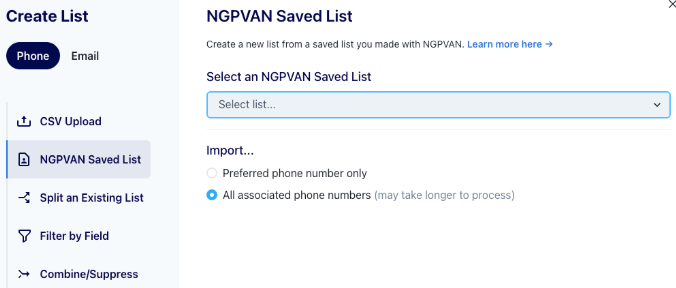
When importing a Saved List from NGPVAN, you can now choose to import all phone numbers associated with a person, not just their preferred phone. This gives you more flexibility when managing outreach lists with multiple valid phone numbers.
💾 Show Contact Cards in Message Previews
Want your recipients to save your contact info with one tap? Now when you attach Contact Cards (aka VCF files or vCards) to messages, you’ll see a preview as you are drafting your broadcast.
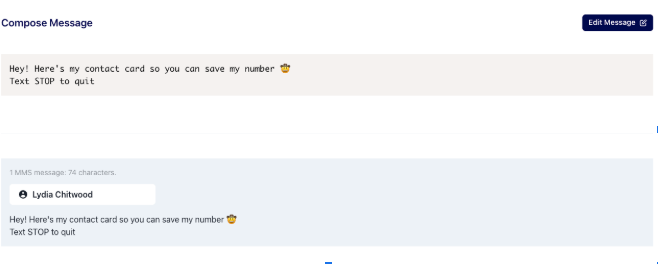
💡Remember: You can also attach a contact card to automated texts! So if you have automated texts going out to new ActBlue Donors or ActionKit subscribers, they can quickly and easily save your contact!
📤 Quick Reminders on Exports
Whether you're exporting a list, message data, or a full contact report, here are a few best practices to keep in mind:
Set Date Range When Exporting Opt Outs - click “Export Opt Outs”, “Export”, and then select the desired dates!
Phone Exports vs Email Exports - Remember to check what type of list you’re exporting! Phone exports come from phone lists and email exports come from email lists.
Get Notified When Your Exports are Ready - Some exports (like large contact files) may take a few minutes—set up email notifications in your profile settings!